Photo to Painting
Turn a Photo Into a Painting With AI
Choose a photo and a style — oil painting, watercolor or pencil. Try one image free on the web, using the same engine as the AI Gahaku app.
Real results
One photo, five painting styles
Each image below was generated once from the same photo with the web trial’s engine, with no retouching. The notes describe what actually changed.
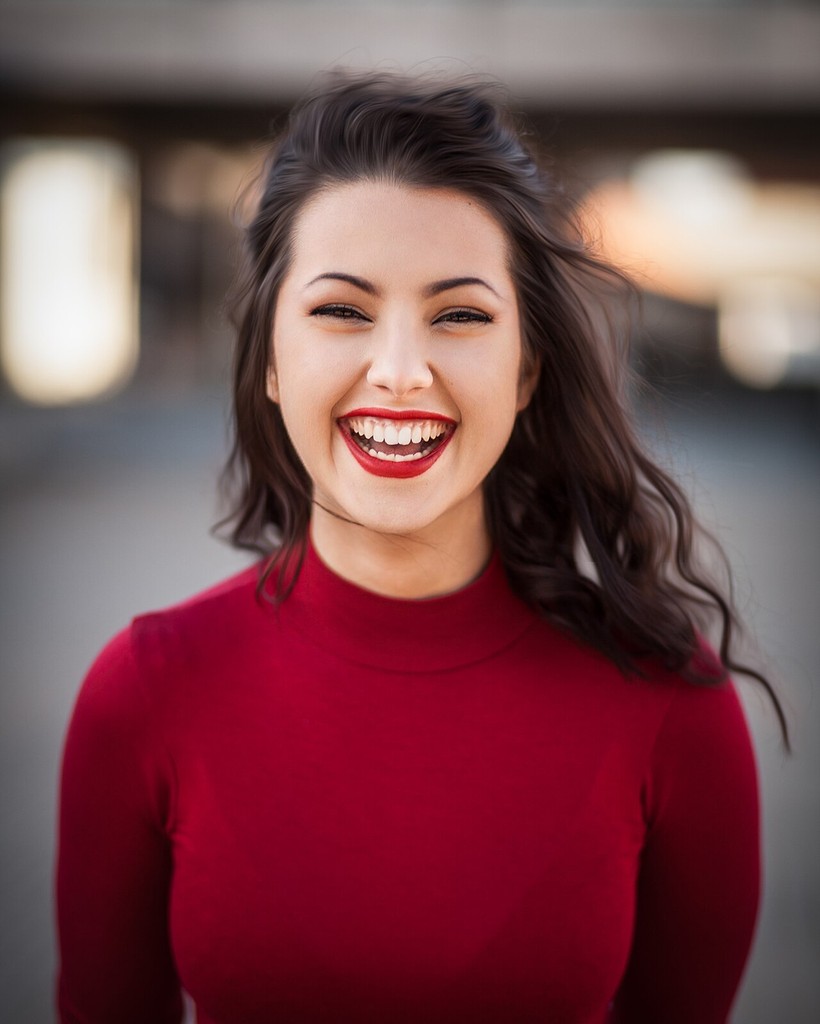
Original photo
A front-facing photo with a blurred background.
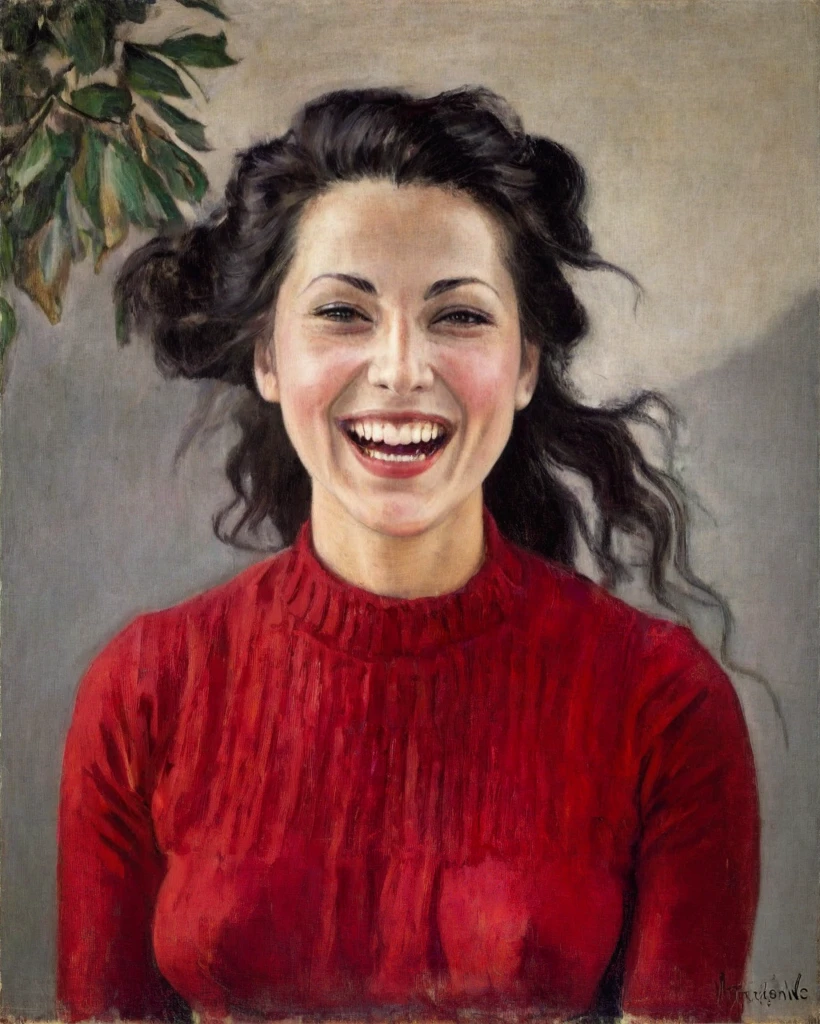
Oil painting · Monet style
Visible brushwork and a knitted texture. Leaves and a signature-like mark were added.
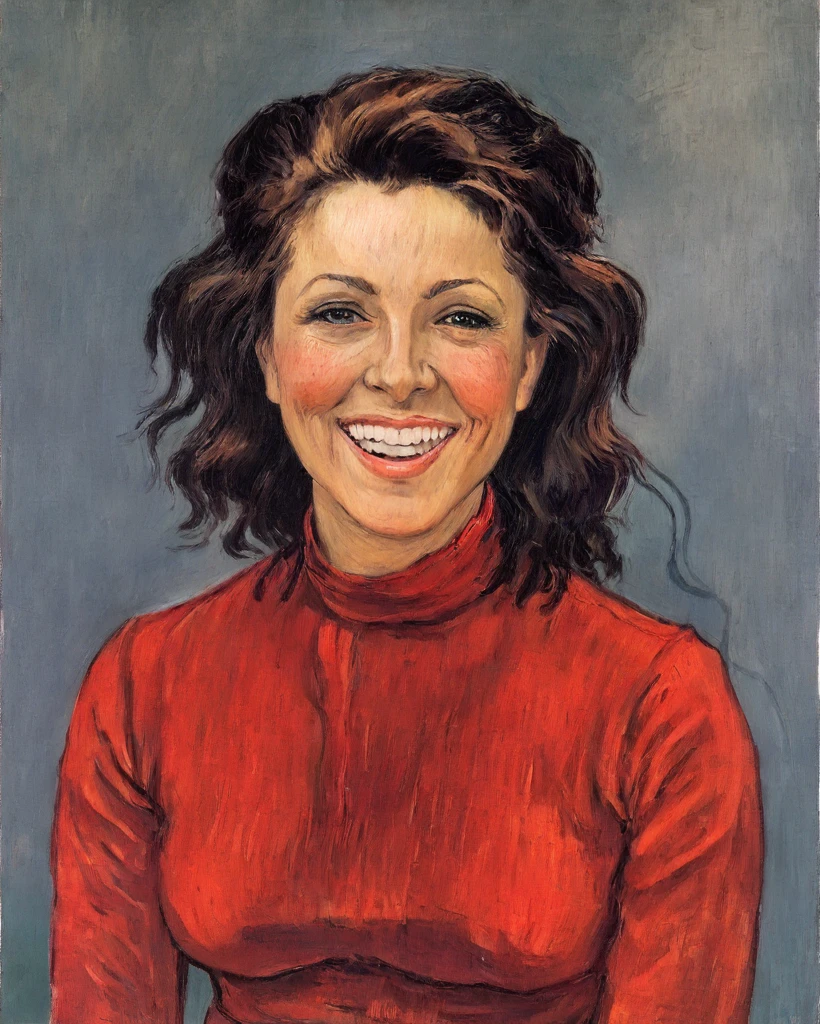
Oil painting · Van Gogh style
Strong outlines and colour. The hair turned auburn and the face looks noticeably different.
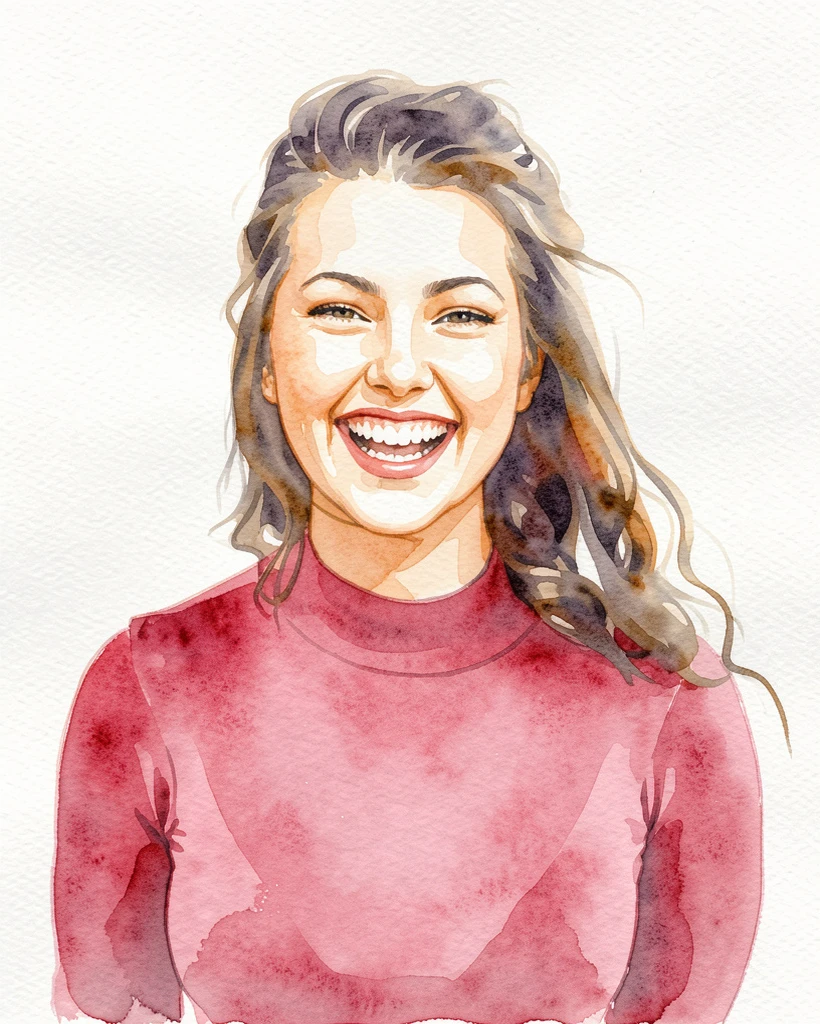
Watercolor · Soft
Stayed closest to the original face. The background became white paper.
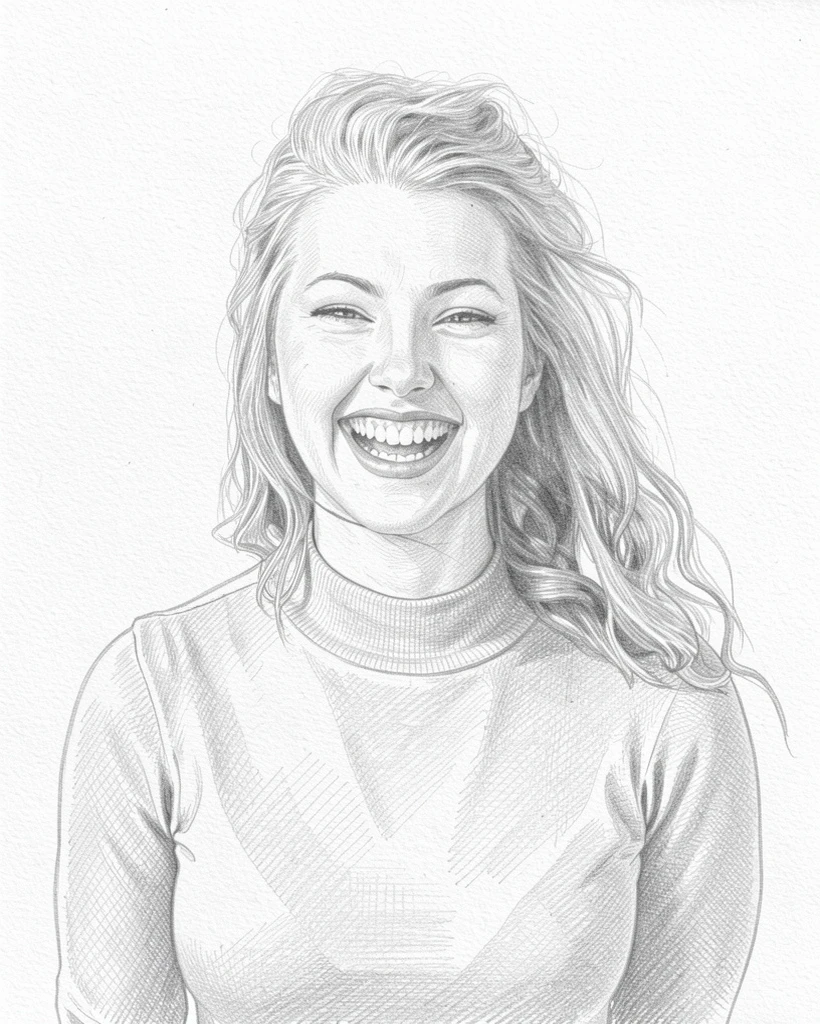
Pencil sketch
Clear lines and hatching. The hair became lighter than in the photo.
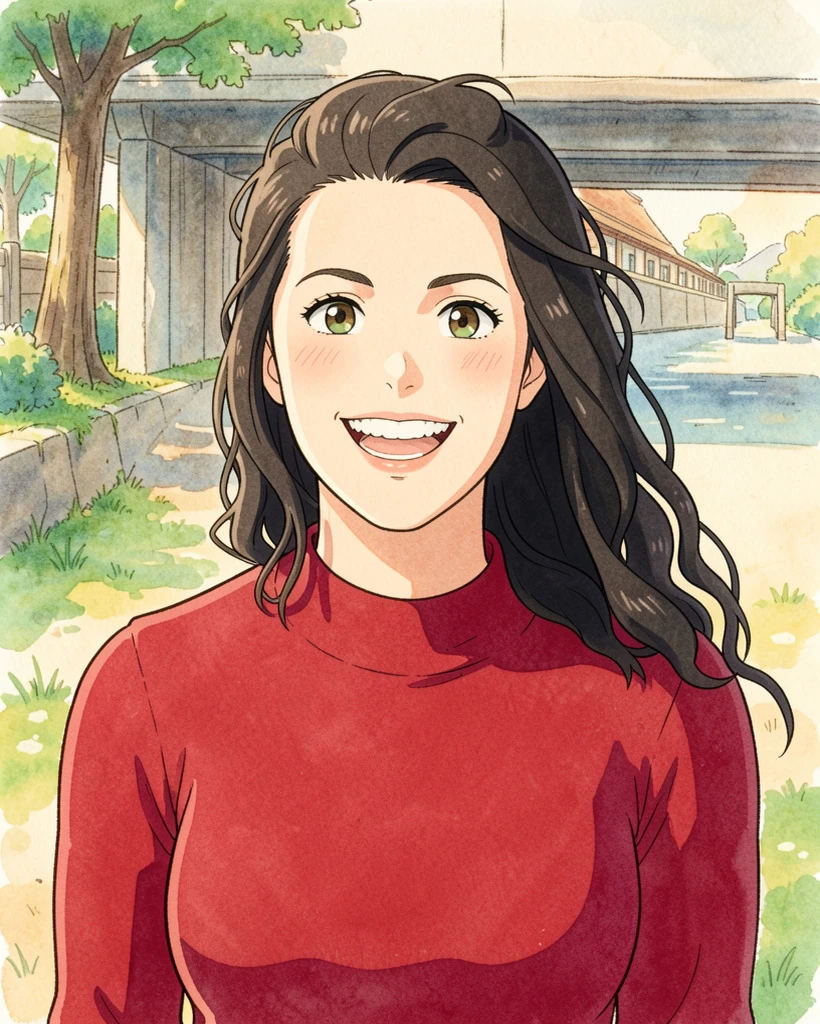
Anime
The background was replaced with a riverside scene and the smile became softer.
It also works on non-portrait photos
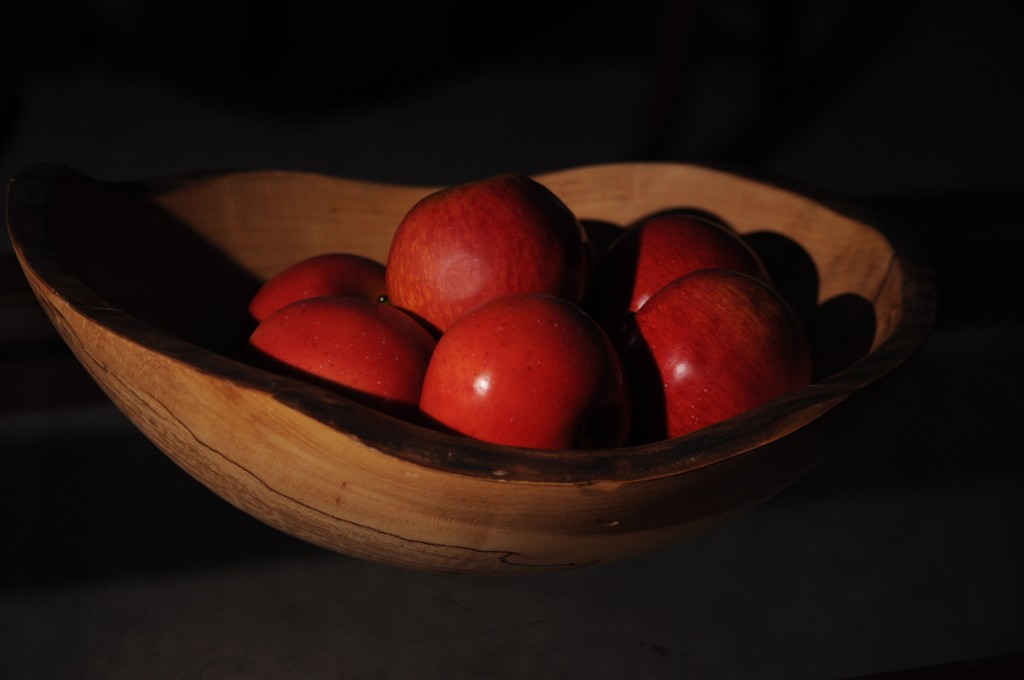
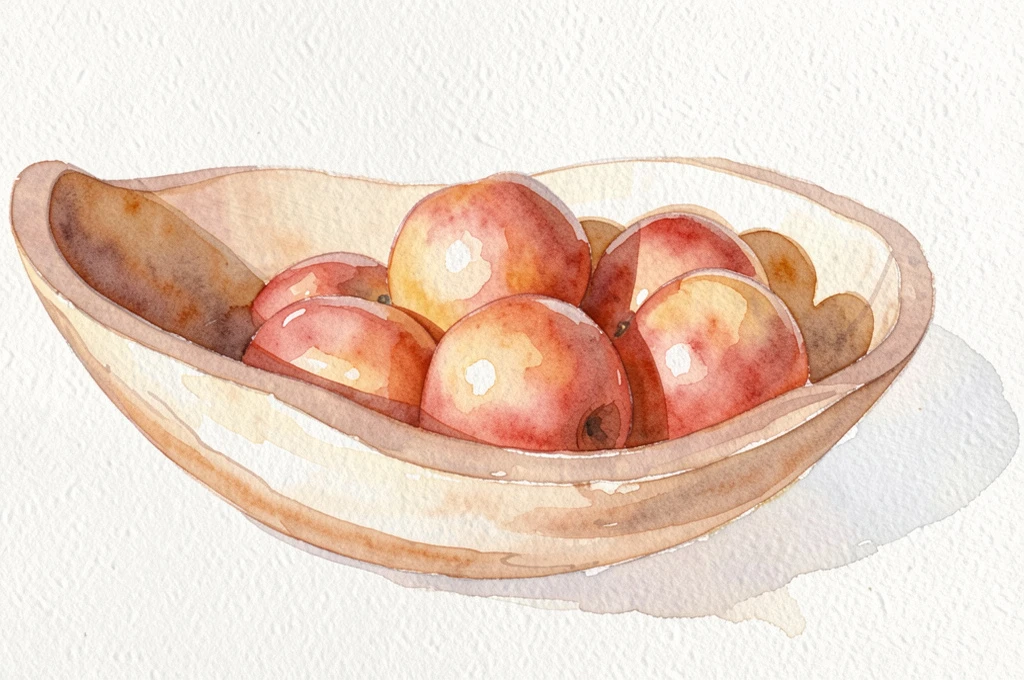
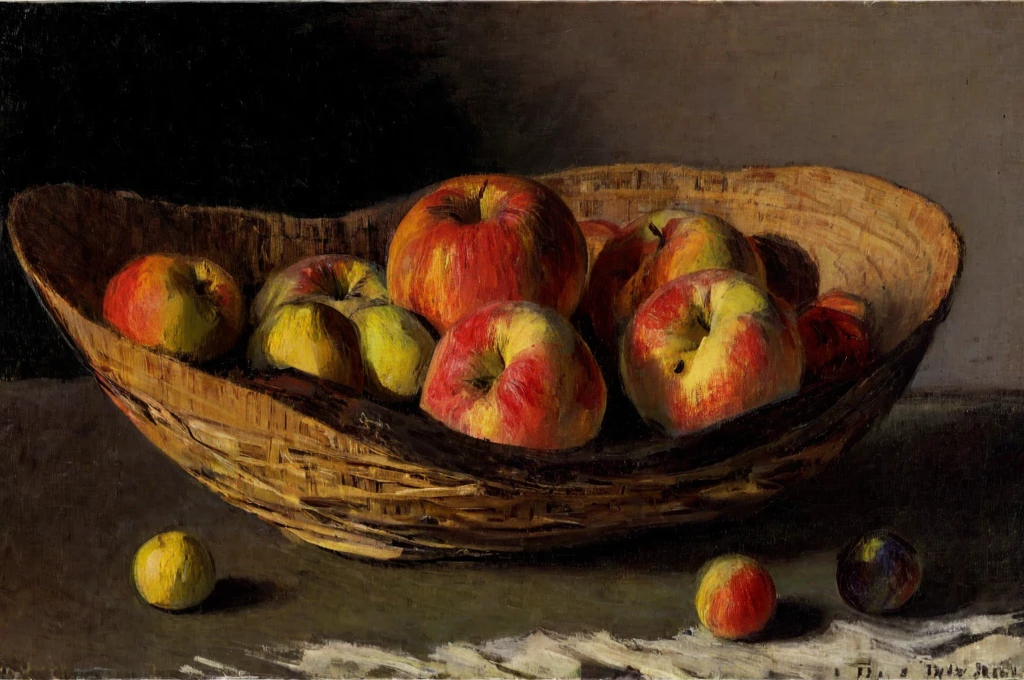
Generated on October 6, 2026. Photos: Michael Dam / Unsplash (CC0) · Alonso Anderson (CC BY-SA 4.0) · Generation record (JSON)
What to expect from photo-to-painting AI
- Styles change more than colour. Oil styles can alter hair colour, facial features and the background, so the result is an interpretation, not a filter.
- Lighter styles such as watercolor and pencil kept the face closest to the original in our test.
- Objects can be added or changed — in our still-life test a wooden bowl became a basket. Check the result before using it as a reference.
- This page shows one portrait and one still life. Other photos can give different results.
How to turn your photo into a painting
- 1
Choose a clear photo
JPEG, PNG or WebP up to 10 MB. A front-facing photo in good light works best. Convert HEIC to JPEG first.
- 2
Pick a style
Monet or Van Gogh for oil painting, soft watercolor, pencil, crayon or anime.
- 3
Create and save
Generation can take a few minutes. Save the WebP within one hour, or continue in the app for more styles.
Turn your photo into a painting, free
Try one successful creation free per browser, using the same generation engine as the app. This trial is shared across every page of this site.
Checking your trial…
Web trial vs. the app
| Web trial | iOS & Android app | |
|---|---|---|
| Styles | 12: eight famous painters (Van Gogh, Monet, Warhol and more) plus two watercolors, pencil and anime | 300+ styles, including portrait, anime and dedicated pet styles |
| Free usage | One successful creation per browser, no account | Free to start, with an optional PRO plan |
| Result | WebP up to 1,024 px, viewable for one hour | High-resolution save and share |
The web trial uses the same generation engine as the app. See the app for its current free usage and prices.