Guide · Renaissance portrait
How to Turn a Photo Into a Renaissance Painting
Let Botticelli, Michelangelo or Jan van Eyck repaint your photo in the app, or try a classical portrait right here on this page.
AI Gahaku team · Tested October 8, 2026
Short answer
Pick a photo in the AI Gahaku app, choose Botticelli, Michelangelo or Eyck, and create. Want a taste first? The tool below paints a classical portrait inspired by Bouguereau, a 19th-century master: not Renaissance, but the closest match here.
Real results
One photo, six old-master styles
Same photo, six painters, no retouching. Each is labelled with its era, since not every “Renaissance” look really is one.

Original photo
Front-facing, at home, plants and shelves behind her.
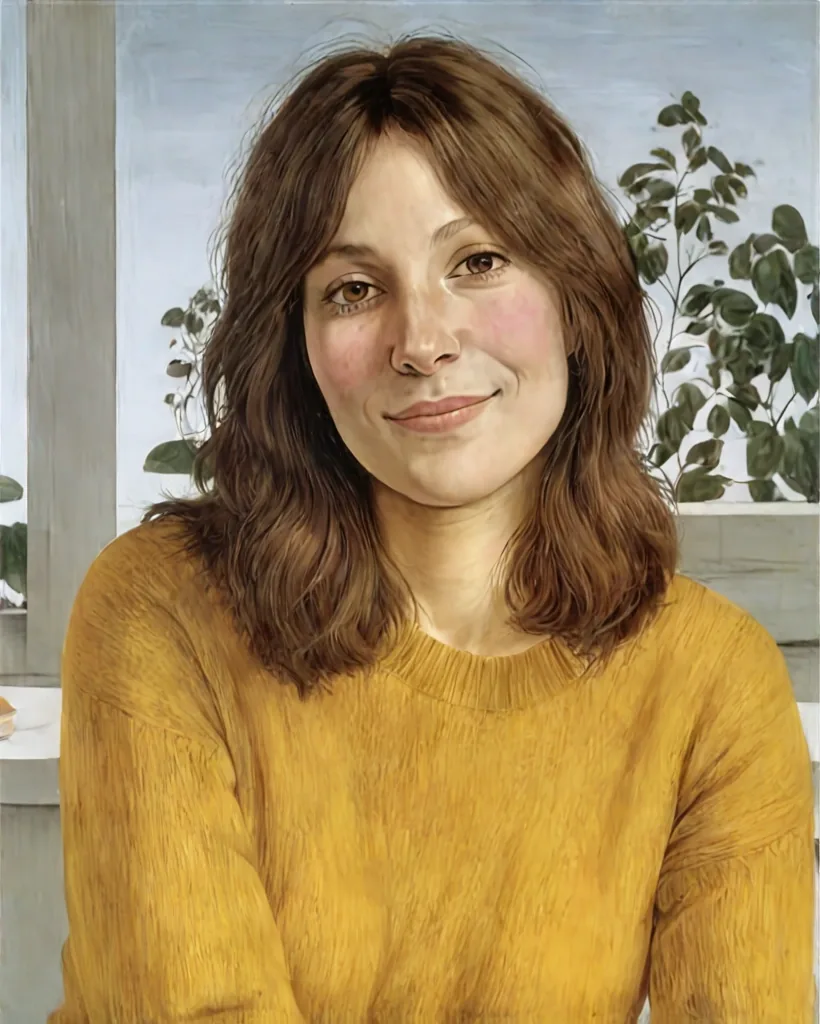
Botticelli Early Renaissance
Pale, smooth skin and a light colonnade with plants. Pose and yellow sweater stay closest to the photo.
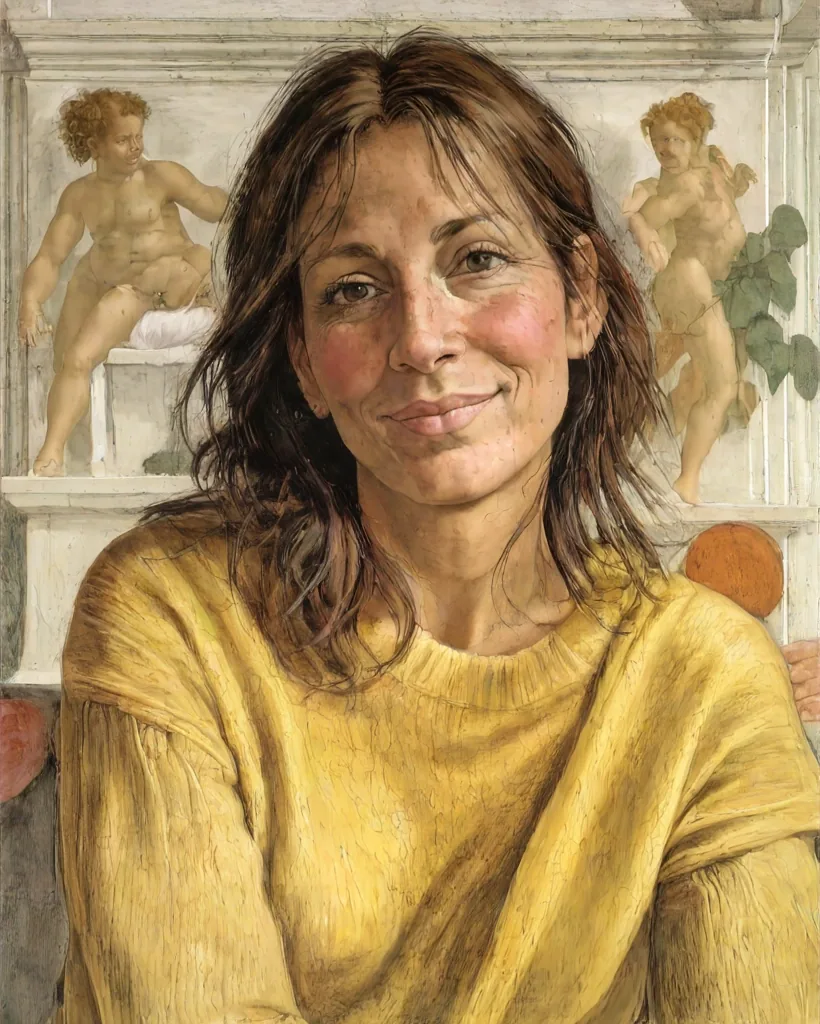
Michelangelo High Renaissance
A fresco-like wall with two cherubs appeared, and strong modelling gave the face a more lined, weathered look.
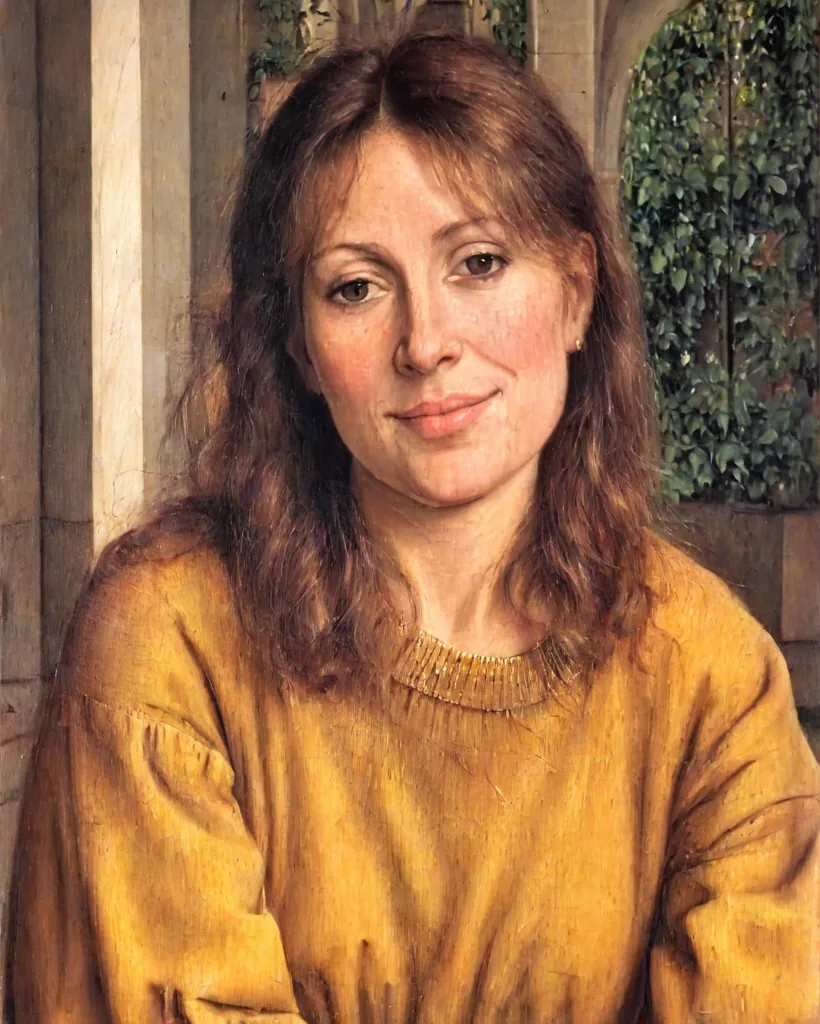
Jan van Eyck Northern Renaissance
A warm interior with arches and greenery, fine detail in the hair. The sweater turned ochre and the hair redder.
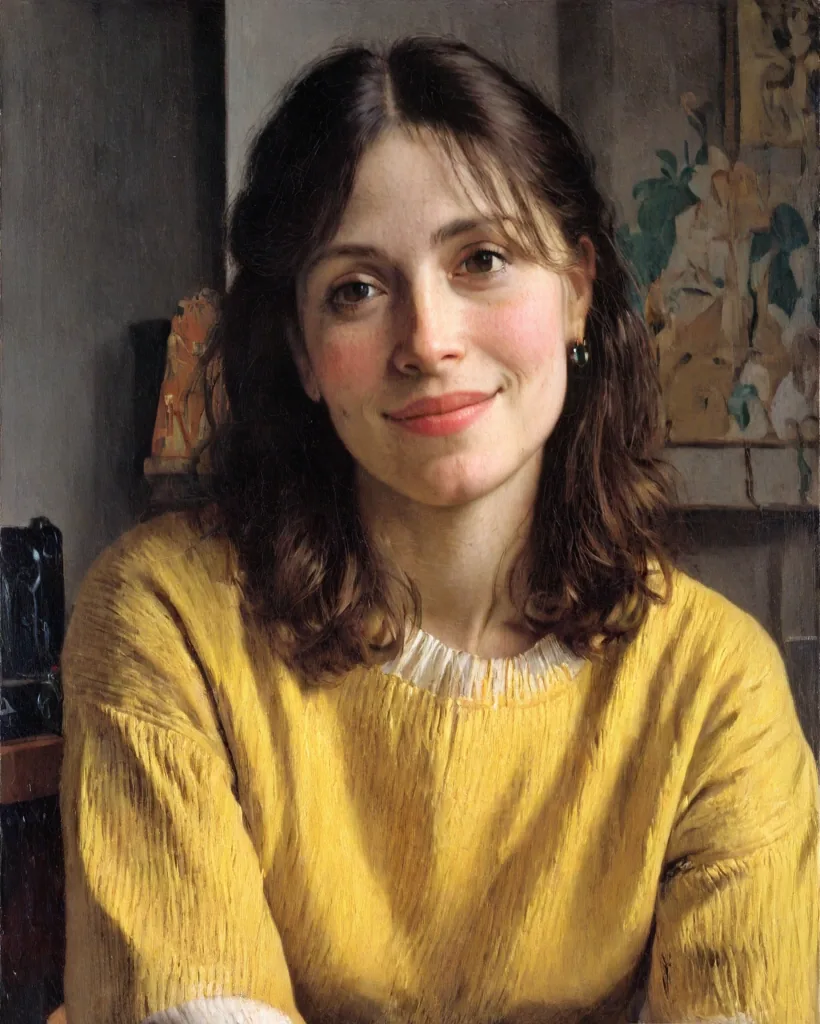
Vermeer Dutch Golden Age, 1600s
A dim interior with a painting on the wall and soft side light, plus a white collar under the sweater.
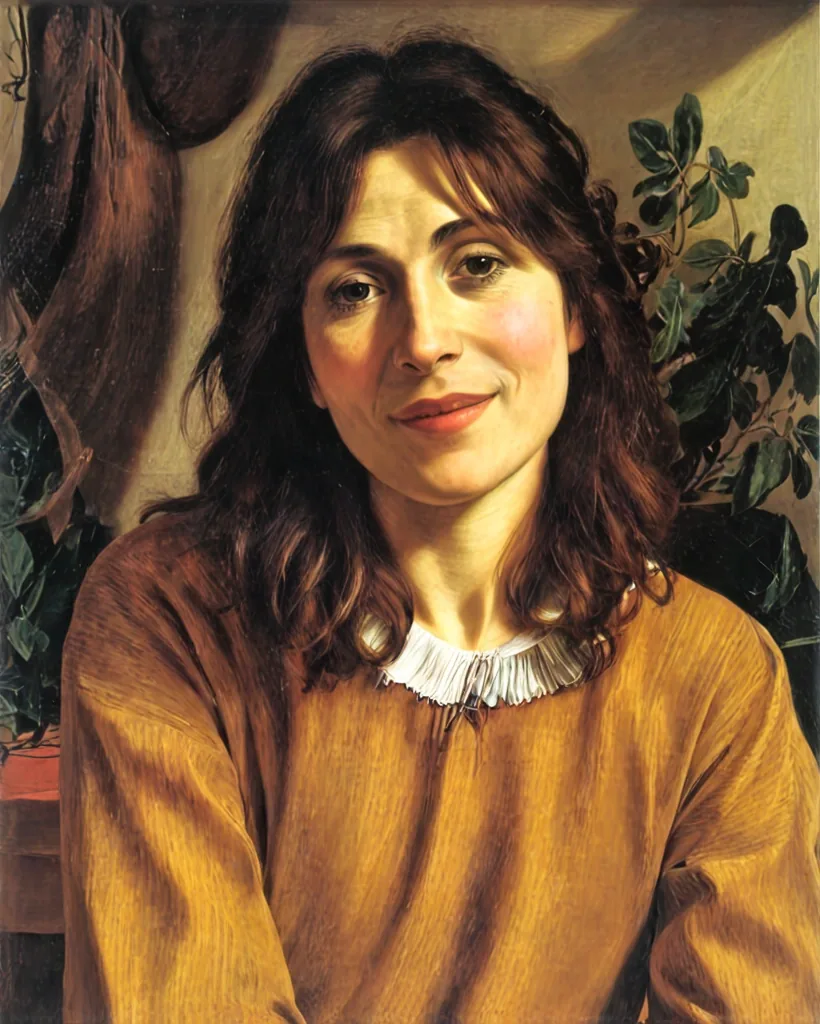
Caravaggio Baroque, 1600s
Deep shadows and strong side light. A lace collar appeared and the sweater turned brown.
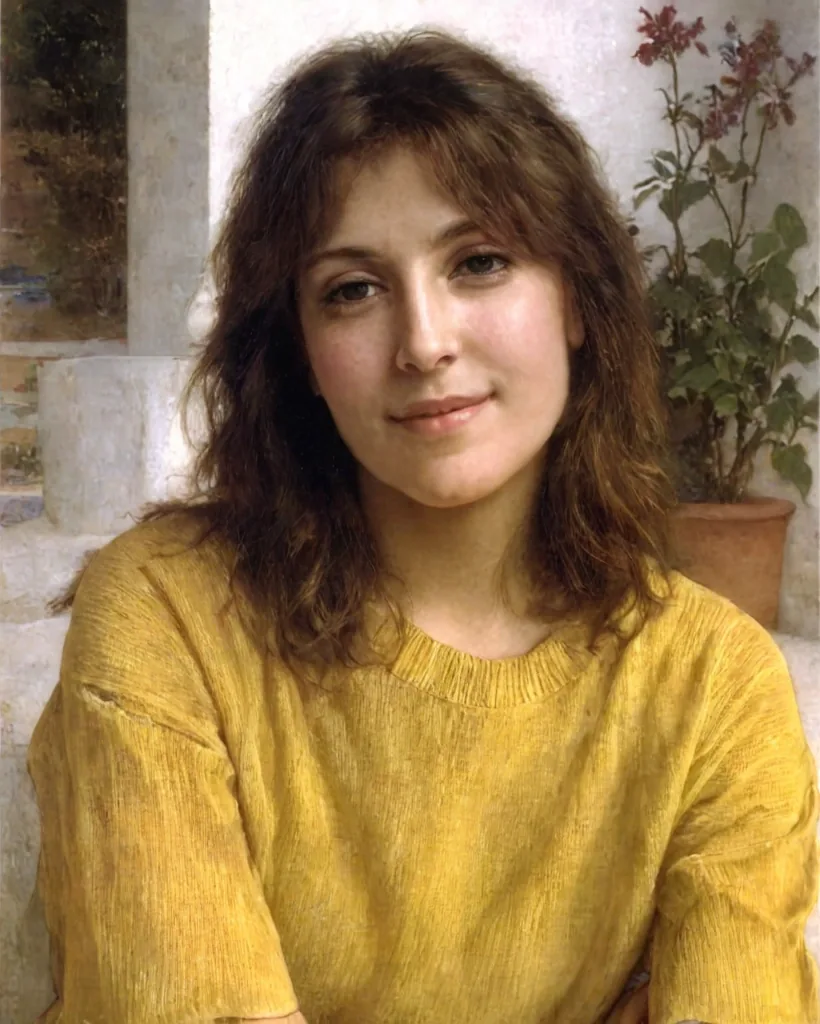
Bouguereau 19th century
Soft, polished realism. The room became a stone setting with a flower pot; the yellow sweater stayed.
What to expect
- Each painter repaints the whole scene: a colonnade, a fresco, an arched interior, a dim room or a stone courtyard instead of the living room.
- Clothes stay recognisable and pick up period details, like Caravaggio’s lace collar or Vermeer’s white one.
- Faces take on the painter’s character. Botticelli and Bouguereau stayed closest to the photo; Michelangelo made the face look older.
- Renaissance means roughly 1400–1600: Botticelli, Michelangelo, Jan van Eyck. Vermeer and Caravaggio are 1600s, Bouguereau 19th century. Pick by the look you like.
Step by step
- 1
Get the app
Install AI Gahaku on iPhone or Android and pick a bright, front-facing photo.
- 2
Pick a Renaissance painter
Open the painter styles and tap Botticelli, Michelangelo or Eyck (Jan van Eyck). Caravaggio and Vermeer are waiting too.
- 3
Create and save
Create and save, then try another painter on the same photo and see how the mood shifts.
Try it with your photo
See your photo become a Van Gogh, a Monet and more.
Checking your trial…
Meet the old masters in the app
Botticelli, Michelangelo, Jan van Eyck, Caravaggio, Vermeer and 300+ other styles, pets included.


Frequently asked questions
Can I make a Renaissance portrait for free?
Which style looks most like a Renaissance portrait?
Will it still look like me?
Does it work on pets?
Is my photo stored?
Related
- Van Gogh style from a photoTwo photos, before and after.
- Oil painting portraitsThe artists behind the oil styles.
- Pet portraitsTurn your dog or cat into a classical painting.
- Photo to paintingOne photo in five styles, with what each changes.
How these examples were made
Generated on October 8, 2026 with the app’s style IDs (strength 0.9), one generation per style, resized to 820 × 1024 and saved as WebP with no retouching. The person in the photo is fictional, created with an AI image generator; she is not a real person.